Bring your Drivvo history into Odoline.
Odoline reads the CSV file Drivvo exports, starting with the Refuelling section. You see a preview first, and nothing is saved until you tap Import. Importing is free.
Refuelling and more, and what does not.
A Drivvo file has one section for each kind of entry. This is what Odoline's importer reads from it.
Refuelling section
- Odometer and date
- Quantity, price per unit and total
- Full tank or not, and the note
Expense and service sections
- Title, date, odometer, cost and note
- Services and other expenses come over as separate kinds of entry
Not imported
- Income, routes and reminders sections
- Units: a Drivvo file does not say them, so the preview asks you
From Drivvo to Odoline.
- 1Export from Drivvo
Export a CSV from the History tab.
In Drivvo, open the History tab and tap the download icon at the top, next to the magnifying glass. Use the magnifying glass first to filter what goes into the file. The file covers the vehicle you have selected. Save it where your phone can open it.
- 2Import into Odoline
Check the preview.
Choose Drivvo as the source and pick the file. Odoline shows the preview with the entries it found. Confirm the units (distance and volume) and the date order, then tap Import. Repeat for each vehicle.
- 3Done
Your history is yours again.
Your entries are in your log, on your phone, with free CSV and JSON export whenever you want it.
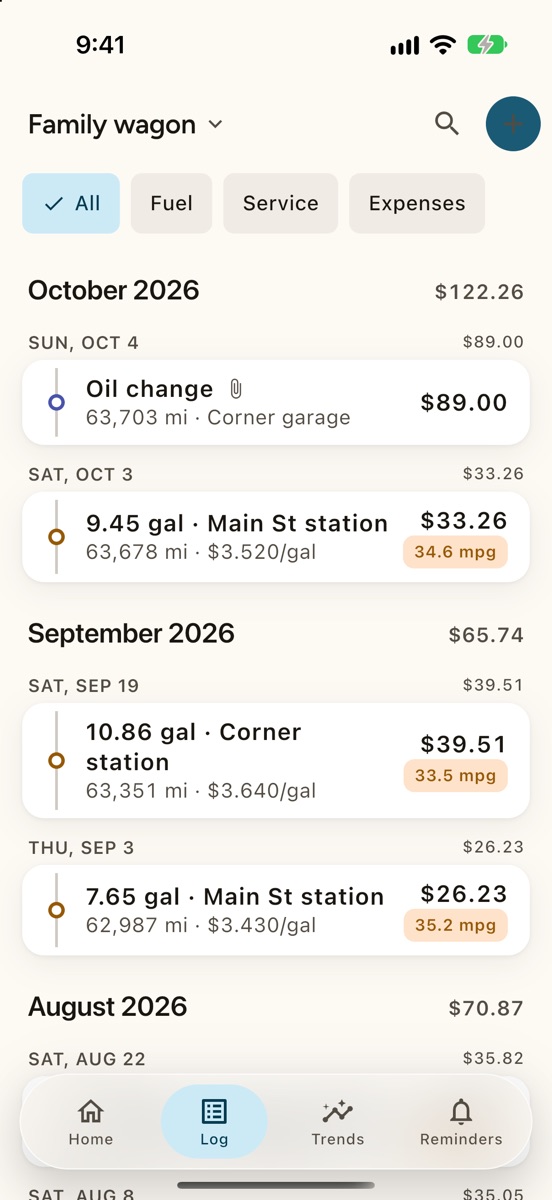
Bring your log with you.
Be first to try Odoline. One email on launch day.
One email when Odoline launches. No newsletter. Privacy