Bring your Fuelio history into Odoline.
Odoline reads the CSV file Fuelio exports: the Log section with your fill-ups and the Costs section with everything else you logged. You see a preview first, and nothing is saved until you tap Import. Importing is free.
Log and Costs, and what does not.
One Fuelio file holds one vehicle. This is what Odoline's importer reads from it.
Log section
- Date, odometer and fuel amount
- Full tank or partial fill-up, and missed fill-ups
- Price, as a total and as a price per unit
- Notes, and the second tank of a vehicle with two
- Units, read from the Vehicle section of the file
Costs section
- Services and other costs, with title, date, odometer, cost and notes
- A cost whose category matches a service type becomes a service; the rest become expenses
- Reminders you set on a cost, with their repeat interval
Not imported
- Income entries
- Cost templates
- City, GPS position and fuel type columns, and the consumption column (Odoline works consumption out itself)
From Fuelio to Odoline.
- 1Export from Fuelio
Export a CSV from the app.
In Fuelio, open Settings, then Backup (Import/Export options), and choose Export CSV. Fuelio's help describes this for Android. Save the file where your phone can open it, for example in Files or in Google Drive.
- 2Import into Odoline
Check the preview.
Choose Fuelio as the source and pick the file. Odoline shows the preview with the entries it found. Confirm the units (distance and volume) and the date order, then tap Import. Repeat for each vehicle.
- 3Done
Your history is yours again.
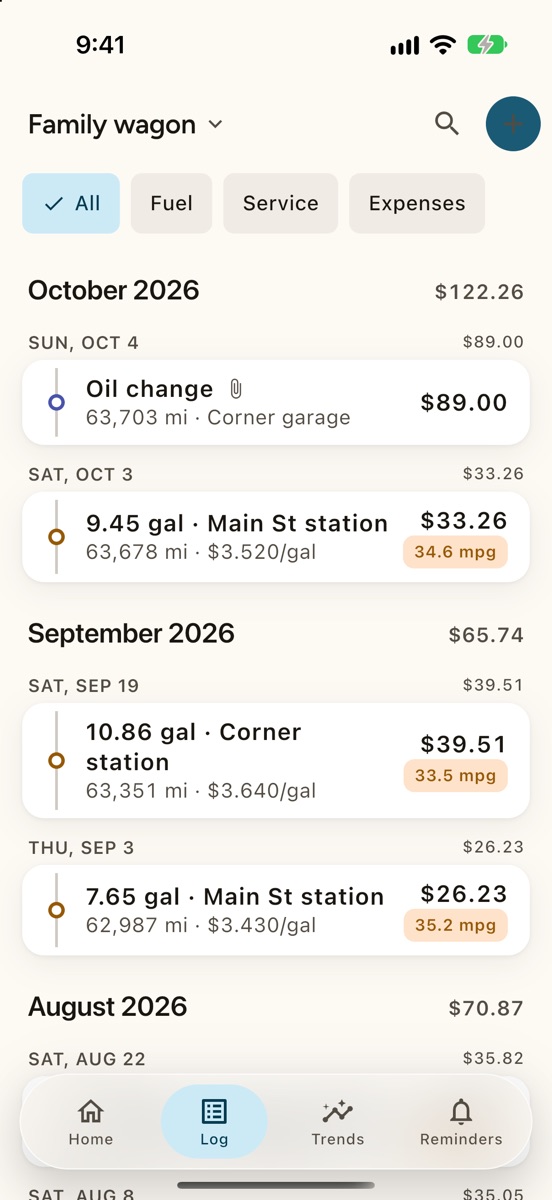
Your fill-ups, services and costs are in your log, on your phone, with free CSV and JSON export whenever you want it.
Bring your log with you.
Be first to try Odoline. One email on launch day.
One email when Odoline launches. No newsletter. Privacy