Export your Fuelly data now.
Your Fuelly log lives on Fuelly's servers, not on your phone. Take your own copy while you can sign in: it takes a few minutes, and the files are yours to keep.
A copy you hold can't be locked out.
With an account-based log, a forgotten password, a closed account or a service that changes can all stand between you and your own history. A CSV file on your phone or in your own cloud folder does not depend on any of them.
Download, keep, import.
- 1Download from Fuelly
Get the fill-ups and the services.
If your app can export a CSV file, use its export or backup option and save the file where your phone can open it, for example in Files or in Google Drive.
Odoline reads two kinds of Fuelly file: one with a vehicle's fill-ups and one with its service log. Download both, for every vehicle you want to keep.
- 2Keep the files safe
Put them somewhere you control.
Save them in Files on your phone, or in a Google Drive or iCloud Drive folder. Keep them even after you have imported them: they are your backup of what Fuelly held.
- 3Import into Odoline
When the app launches.
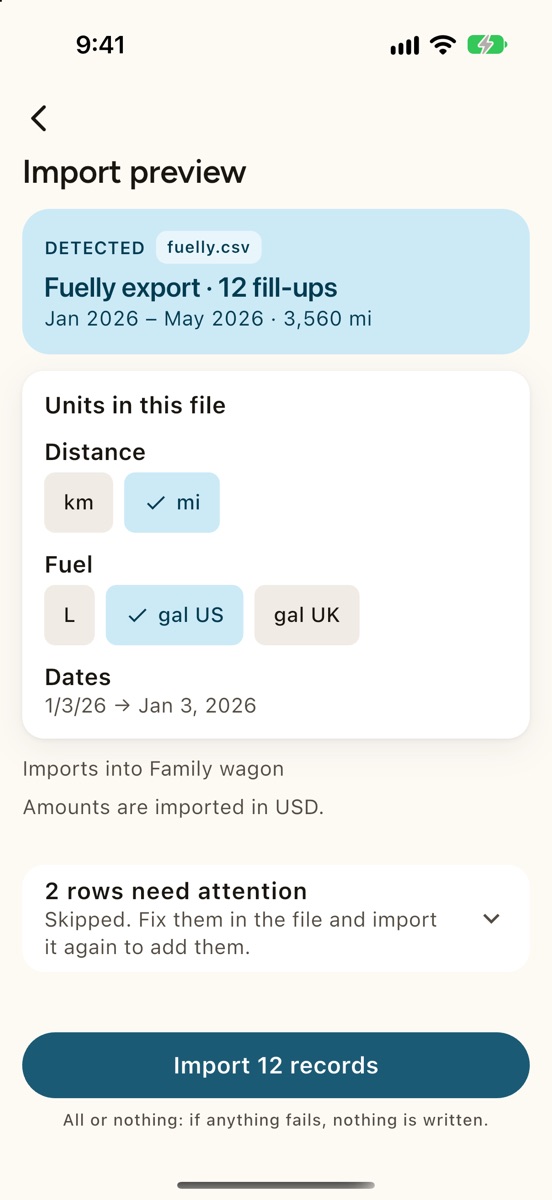
Join the waitlist below. When Odoline is out, choose Fuelly as the source, pick a file, check the preview and confirm the units and date order. Then import the second file the same way. See what comes over from Fuelly.
Be first to bring your history over.
One email on launch day.
One email when Odoline launches. No newsletter. Privacy