Bring your Fuelly history into Odoline.
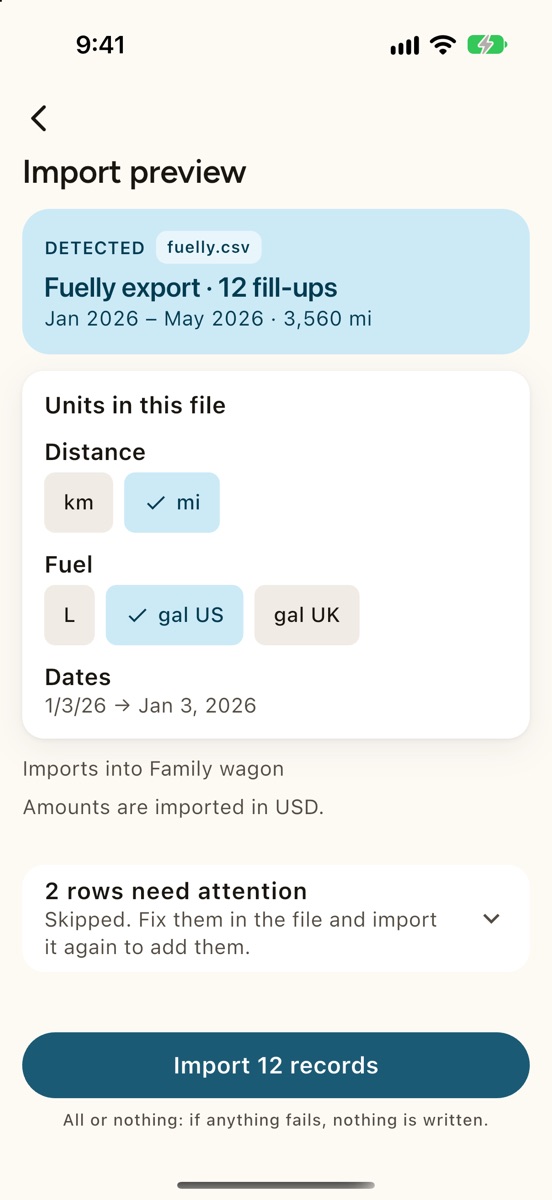
Odoline reads the CSV files Fuelly exports: your fill-ups and your services. You see a preview first, and nothing is saved until you tap Import. Importing is free.
Fuelly keeps your data on its own servers, so export it while you can. Export your Fuelly data now.
Fill-ups and services, and what does not.
This is what Odoline's importer reads from a Fuelly export, no more and no less.
Fill-ups file
- Date and odometer
- Litres or gallons, and the price
- Full tank or partial fill-up, and missed fill-ups
- Station (brand), notes and tags (tags are added to the note)
Services file
- Title, date and mileage
- Cost and note
- It is a second file, imported the same way as the first
Not imported
- Expenses: Odoline does not read expenses from a Fuelly export. Add them by hand.
- City or highway share and GPS position
- Anything else Fuelly shows on the website but leaves out of the CSV files
From Fuelly to Odoline.
- 1Export from Fuelly
Get both files.
If your app can export a CSV file, use its export or backup option and save the file where your phone can open it, for example in Files or in Google Drive.
Export the fill-ups of each vehicle, and its services as a second file.
- 2Import into Odoline
Check the preview.
Choose Fuelly as the source and pick a file. Odoline shows the preview with the entries it found. Confirm the units (distance and volume) and the date order. Then import the second file the same way.
- 3Done
Your history is yours again.
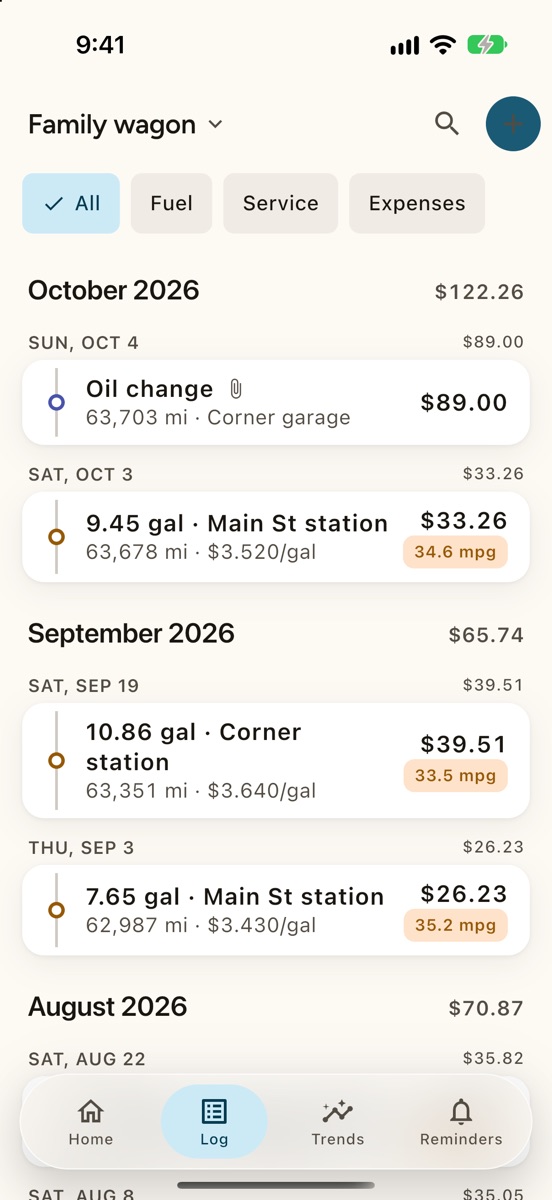
Your fill-ups and services are in your log, on your phone, with free CSV and JSON export whenever you want it.
Use the CSV route.
Odoline has no aCar importer. If you can get your fill-ups out of aCar as a CSV file with a header row, choose “Other CSV file” in Odoline and match the columns once. It needs a date column, a quantity column, and an odometer or trip-distance column (a row with neither is skipped); price, total, full tank and notes are optional. Odoline remembers your matching for files with the same header.
Bring your log with you.
Be first to try Odoline. One email on launch day.
One email when Odoline launches. No newsletter. Privacy